
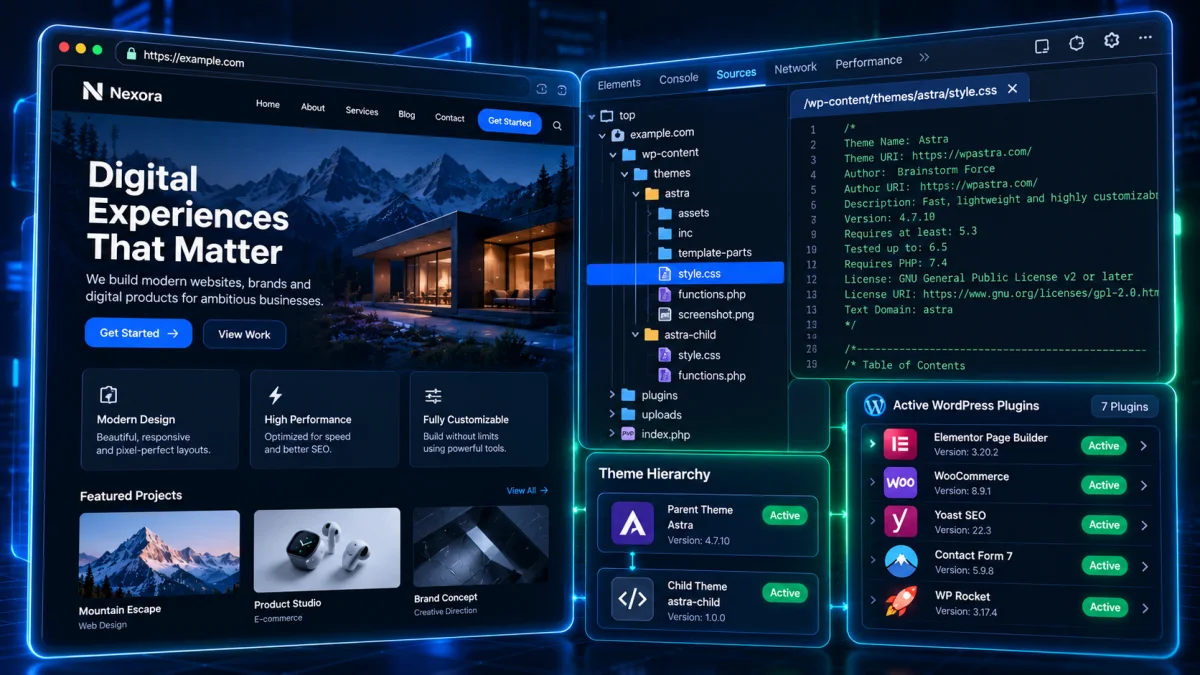
When you land on a fast, clean, high-converting WordPress website, the first question almost every developer, blogger, and marketer asks is: “What WordPress theme and plugins are they using?”
Whether you are benchmarking a competitor’s Core Web Vitals setup, researching lightweight block themes, or auditing a client’s technology stack before a redesign, identifying the underlying WordPress theme and active plugins takes less than 30 seconds when you know where to look.
In this guide, we cover 3 proven methods – ranging from an instant automated WordPress Theme Detector to manual Chrome DevTools inspection – plus how to tell when a site is running a custom or headless architecture.
Method 1: Use a Free WordPress Theme Detector & Plugin Checker (Fastest)
The fastest way to inspect any website’s WordPress stack without digging through minified HTML is to run the URL through our free Website Theme Detector & WordPress Plugin Checker.
How the Theme Detector Works
- Open the GrowthNiq Website Theme Detector.
- Paste the target website URL (for example,
https://growthniq.com) and click Analyze. - Within 3 seconds, the theme detector fetches the document, parses stylesheet headers, asset paths, script handles, and DOM signatures, and reports:
- Active Theme Name, Version and Author: Extracted directly from
style.cssmetadata headers. - Parent vs. Child Theme Architecture: Detects whether the site uses a child theme on top of frameworks like GeneratePress, Astra, Divi, Avada, or Kadence.
- Detected WordPress Plugins: Identifies SEO, caching, e-commerce, form, and analytics plugins by their frontend asset fingerprints.
- Active Theme Name, Version and Author: Extracted directly from
Method 2: Inspect the Page Source Manually (style.css Header)
Every standard WordPress theme is required to include a style.css file in its root directory (/wp-content/themes/theme-slug/style.css) containing a standardized comment block at the very top of the file.
Step-by-Step Manual Inspection
- Open the target website in Chrome, Firefox, or Edge and press
Ctrl + U(Windows/Linux) orCmd + Option + U(Mac) to view the raw HTML source. - Press
Ctrl + Fand search for/wp-content/themes/. - Look for a stylesheet link similar to:
<link rel="stylesheet" id="theme-style-css" href="https://example.com/wp-content/themes/generatepress/style.min.css?ver=3.5.1" />The folder name immediately following /wp-content/themes/ is the theme’s directory slug. Open https://example.com/wp-content/themes/{theme-slug}/style.css in your browser to read the full header block:
/*
Theme Name: GrowthNiq
Theme URI: https://growthniq.com
Author: Muhammad Abid
Version: 1.0.0
Description: High-performance SEO, blogging and AI tools platform theme.
*/
What If /wp-content/themes/ Doesn’t Appear in HTML?
High-performance WordPress sites that inline all critical CSS into <head> (to eliminate render-blocking requests and score 98–100 on Google PageSpeed Insights) may not output external <link rel="stylesheet"> tags for every CSS file. In those cases, search the page source for:
- Image or font paths under
/wp-content/themes/{theme-slug}/assets/ - Deferred JavaScript files near the closing
</body>tag - Inline
<style id="...-css">IDs that reveal the theme prefix
Method 3: Detect Active WordPress Plugins via Asset and DOM Fingerprints
For security reasons, WordPress does not publish a public list of installed backend plugins. However, any plugin that injects CSS, JavaScript, HTML classes, or meta tags into the frontend leaves a recognizable fingerprint.
| Source Code Fingerprint | What It Reveals | Example Path / Attribute |
|---|---|---|
/wp-content/plugins/{slug}/ |
Exact plugin directory slug | /wp-content/plugins/woocommerce/assets/... |
<script id="{handle}-js"> |
Enqueued script handle | id="contact-form-7-js" |
HTTP Response Headers |
Caching and CDN layer | x-litespeed-cache: hit, cf-cache-status: HIT |
JSON-LD and Meta Generator |
SEO or Schema architecture | <script type="application/ld+json"> |
Why Lightweight Theme Architecture Matters for SEO and Rankings
When you inspect top-ranking blogs in competitive niches using our Website Theme Detector or browse our WordPress Theme & Plugin Websites Finder, a clear pattern emerges: the fastest-growing sites avoid bloated multipurpose themes that load 80+ CSS/JS files on every page view.
Instead, top publishers prioritize:
- Minimal DOM Depth: Keeping total DOM elements under 800 nodes so mobile browsers render pages effortlessly.
- Zero Render-Blocking CSS: Inlining critical layout styles and deferring all interactive scripts. Read our full guide on How to Speed Up a WordPress Website.
- Cross-Platform Benchmarking: If a target site is not using WordPress, read our guides on What CMS and Technology Is This Website Using? and How to Detect Any Store’s Shopify Theme and Apps.
Frequently Asked Questions
Can a website hide its WordPress theme name?
Yes. Sites using security obfuscation plugins, custom rewrite rules, or headless frontends (such as Next.js or Astro pulling from the WordPress REST API) can rename or hide /wp-content/themes/ paths. However, over 95% of standard WordPress sites expose their theme slug via asset URLs or stylesheet headers.
How can I check if a site uses a Child Theme?
When a site runs a child theme, its style.css header includes a Template: parent-theme-slug line, and you will often see assets loading from two separate folders inside /wp-content/themes/. Our Free Website Theme Detector checks both automatically.